How to make an aesthetic quote widget for your iPhone Home Screen
If your Home Screen is something you take care over, the quote on it can have the same care: a photograph behind the words, a typeface you picked, and a quiet effect that moves, snow drifting or embers rising. Here is how to make one in a few minutes, and what each choice does.

A widget that moves
This is the Dailies widget on an iPhone Home Screen, with three of its effects in turn: Blizzard, then Embers, then Butterflies. Each sits over its own photograph, under a quote in the typeface chosen for it.
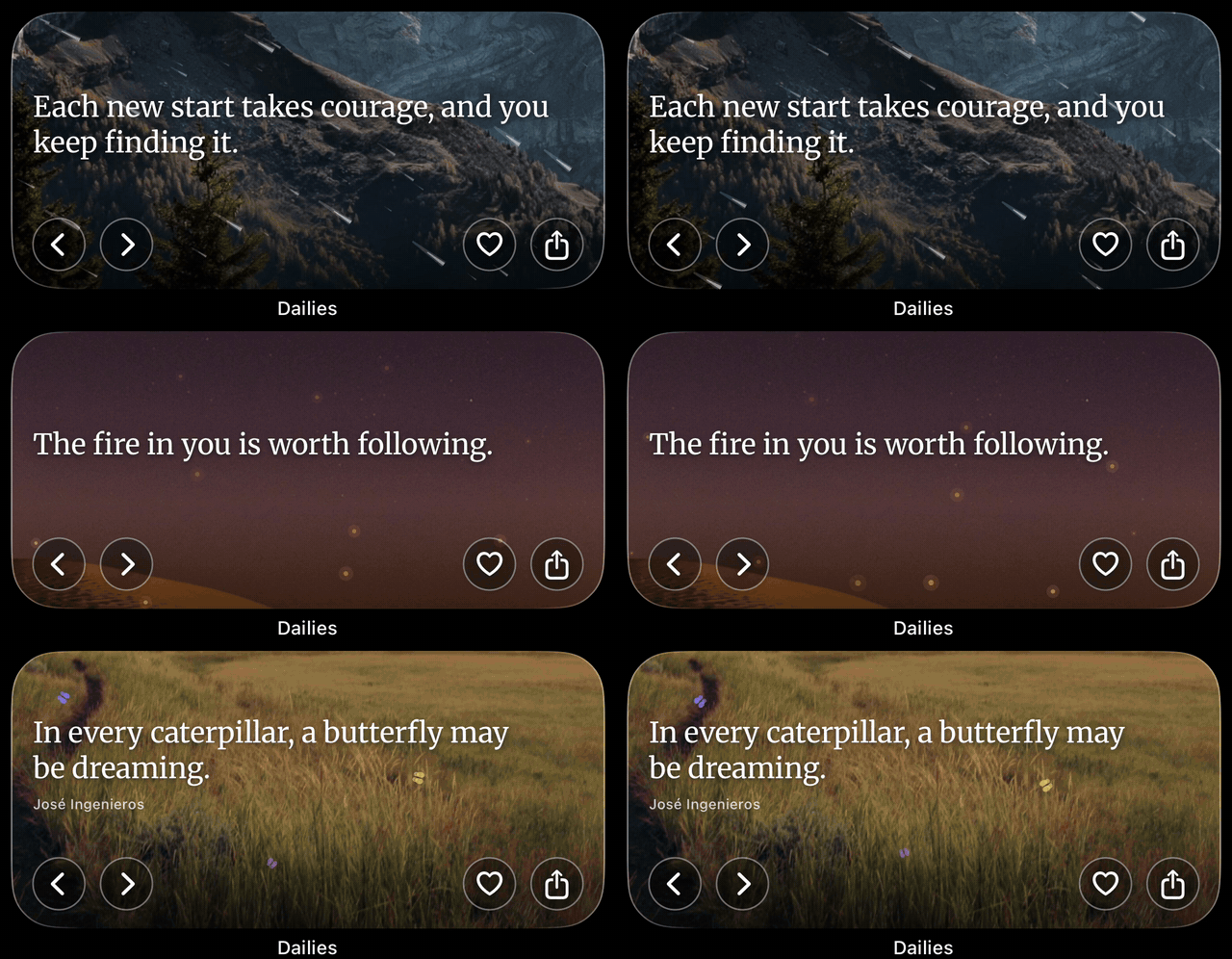
The motion is drawn by iOS itself while your Home Screen is on show, so Dailies does not have to be open, or running in the background, for it to move.
Make it
- Open Style. In Dailies, tap Style in the bar at the bottom of the feed. Every choice previews live on a real quote as you tap, and nothing needs saving.
- Pick a background. On the Background tab, choose a photograph. They are grouped by landscape: mountains, forest, sea, desert, night, and a few plain grounds.
- Pick a font. On the Fonts tab, choose a typeface, from a book serif to a typewriter to handwriting, and set its size with the slider.
- Pick an effect. On the Effects tab, choose one, such as snow, fireflies, meteors or embers, or None for just the photograph.
- Add the widget to your Home Screen. Touch and hold an empty spot on your Home Screen, tap Edit at the top left and choose Add Widget. Search for Dailies, pick the medium or large size, tap Add Widget, then Done.
The widget takes the look you chose, and keeps following it: change the background or the effect in Style and the widget on your Home Screen changes with it. A new quote arrives on it through the day, from the topics you follow, and the arrows on the widget step through them by hand.
The three choices
- The background sets the mood. A dark photograph reads well on a dark Home Screen and lets the effect show; a pale one suits a light wallpaper. With Premium you can put your own photograph behind the words, or a color of your own.
- The typeface sets the voice. A serif reads like a book, a typewriter face like a note left on the desk, handwriting like something a friend wrote you. The size slider matters on the medium widget: a smaller size fits a longer line.
- The effect sets the pace. Some are barely there, a little dust in the light or the edges quietly darkened. Others are lively: driving snow, a slow galaxy, the odd meteor. On a small tile the livelier ones are the easiest to see.
Matching the widget to your wallpaper is the trick that makes a Home Screen look designed: the same landscape, or a photograph with the same colors in it.
When it stands still
The effect is still there in two cases, just not moving:
- Reduce Motion is on. The widget respects the iPhone’s own setting, under Settings, Accessibility, Motion.
- Your Home Screen icons are Tinted or Clear. In those looks iOS draws every widget in one color, so the photograph and the effect step aside. Touch and hold the Home Screen, tap Edit, then Customize, and choose Default or Dark to bring them back.
If the widget is not showing new quotes at all, that is a different thing: why an iPhone widget stops updating covers it.
On the Lock Screen
iOS draws every Lock Screen widget in its own style, in the tone of the clock, so the photograph and the effect belong to the Home Screen. Under the clock you get the words themselves, which is what a glance at the Lock Screen is for. How to put quotes on your iPhone Lock Screen has those steps, and how to make a quote wallpaper covers putting a styled quote behind the clock instead.
What is free
A selection of backgrounds, fonts and effects is free, picked from across the range rather than from one corner of it, so a free widget already looks like yours. Premium opens every background, font and effect, along with your own photographs and colors.
Questions
How do I make an aesthetic quote widget on iPhone?
In Dailies, open Style and choose a background, a font and an effect, then add the Dailies widget to your Home Screen in the medium or large size. It takes the look you chose and shows a new quote through the day.
Can a widget on the iPhone Home Screen move?
Yes. The Dailies Home Screen widget can carry a moving effect over its photograph, such as blowing snow, rising embers or butterflies. iOS draws the motion while your Home Screen is on show.
Why is my quote widget not moving?
Either Reduce Motion is on, under Settings, Accessibility, Motion, or your Home Screen icons are set to Tinted or Clear, where iOS draws widgets in one color. Choose an effect other than None in Style too.
Can I use my own photo behind the quote?
Yes, with Premium. On the Background tab in Style you can choose a photograph of your own, or a solid color.
Can my Lock Screen quote widget have a photo behind it?
iOS draws Lock Screen widgets in a single tone, for every app, so the photograph and effect live on the Home Screen widget. To have a styled quote behind the clock, save it as a picture and set it as your wallpaper.
Keep reading
Start today with something good.
Set it up once. Dailies takes it from there.