How to put quotes on your iPhone Lock Screen
There are three different things people mean by this, they behave nothing alike, and picking the wrong one is why the result usually disappoints. Here is what each one actually does and the steps for all three.
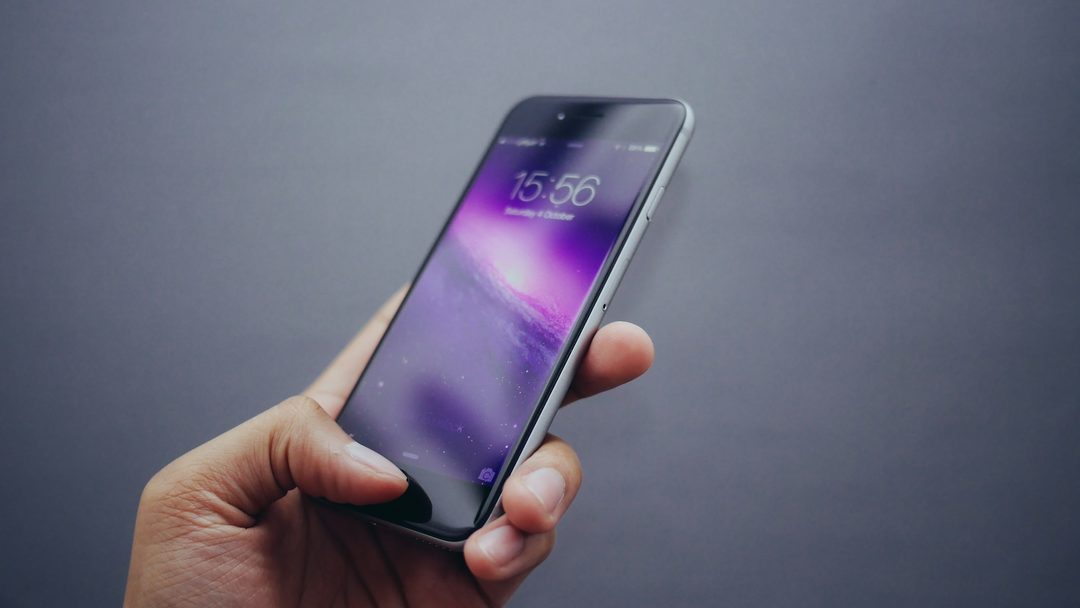
Which one you want
The iPhone Lock Screen will hold a quote in three places, and they are genuinely different things to live with.
| Way | Best for |
|---|---|
| A Lock Screen widget | Seeing something new every time you pick your iPhone up |
| Notifications | Being reached at a moment you did not choose |
| A quote as your wallpaper | One line you want to live with for a while |
Setting a quote as the wallpaper and expecting it to rotate. It will not. A wallpaper is a photograph of a quote and it stays there until you change it, which is lovely for one line that means something to you, and wearing for a line you have now read four hundred times.
The rest of this page uses Dailies for the examples, because that is the app this site is about. The wallpaper route works with a picture from anywhere, and the widget and notification steps are the standard iOS ones; only the name in the list changes.
1. A Lock Screen widget
This is the one most people are after: a quote sitting under the clock, different from the last time you looked, with nothing to unlock and nothing to open.
- Wake your iPhone and touch and hold your Lock Screen. You may be asked to unlock first.
- Tap Customize, then tap Lock Screen.
- Tap the empty box under the time.
- Pick Dailies from the list.
- Tap Done.
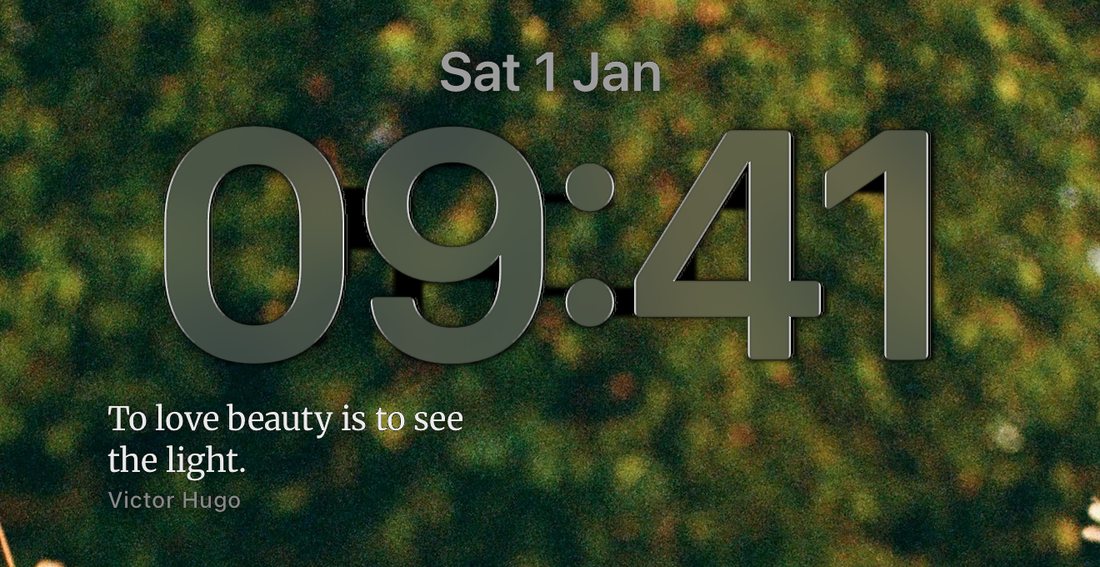
You can do the same thing from inside the app, under Personalize → Lock screen widget, which walks you through it with the screens drawn.
Two things worth knowing before you judge the result. iOS gives a Lock Screen widget one small box and draws it in a single tone: no color, no background, no typeface of its own. That is the operating system's rule and every app lives under it. So Dailies puts a short quote there rather than a long one, because a long one in that box is a gray smudge. Tap the widget to open the app on that quote.
If there is no empty box under the time, the Lock Screen you are editing already has its widget slot filled. Tap the widgets that are there, remove one with the − on it, and the empty box appears.
Every iPhone that can run Dailies can show a Lock Screen widget, so if the app installed, this will work.
2. Quotes that arrive through the day
A widget waits for you to look. A notification comes and finds you, which is a different feeling and, for most people, the one that actually does something. It lands on the Lock Screen whether or not you have a widget there.
In Dailies this is set under Personalize → Daily dose. You choose three things:
- How many you want a day. As few or as many as you like; one a day is a perfectly good way to use it.
- The hours you are happy to be reached, earliest and latest.
- The days, if you would rather not hear from it at the weekend.
What Dailies does not let you do is set the exact minute, and that is deliberate rather than missing. It spreads the quotes through the window you gave it and picks the moments itself. A quote at 9:00 sharp every morning stops being a quote within a week and becomes an alarm you swipe away without reading; one that turns up at some unremarkable point in the afternoon still gets read.
For any of this to reach the Lock Screen, iOS has to be letting it through: Settings → Dailies → Notifications, with Allow Notifications on and Lock Screen ticked.
3. A quote as your wallpaper
The permanent one. You turn a quote into a picture, save it, and set it as the Lock Screen background, so the words are the wallpaper rather than sitting in a box on top of it.
- In Dailies, press and hold a quote to bring up the share options. It goes as a card, in the background you are reading it on.
- Choose Save image. The picture lands in your photo library.
- Open Settings → Wallpaper → Add New Wallpaper, or touch and hold the Lock Screen and tap +.
- Pick Photos, find the quote you just saved, and choose it.
- Drag and pinch so the words are not behind the clock, then tap Add.
That last step is the one to take slowly. The clock sits high and centered, and a quote centered in the picture will land underneath it. Pinch the picture down or shift the words low before you commit.
Pictures exported on the free tier carry a small Dailies wordmark in the corner; exports made with an active Premium subscription do not. Either way the picture is yours to send to a friend or post. The Terms of Use say what is and is not fair game.
You can keep several. iOS lets you hold more than one Lock Screen and swipe between them, so a handful of saved quotes can become a small set you rotate by hand when one stops landing.
Using more than one
They stack, and most people who stay with this end up on two of the three. A widget and notifications together is the common pairing: something new whenever you glance at your iPhone, plus a couple of moments in the day where your iPhone glances at you. Add a wallpaper on top and the Lock Screen gets busy, so pick between the wallpaper and the widget rather than running both.
If you also want a quote on the Home Screen (a bigger box, in color, with the typeface and background you chose), that is a separate widget and a separate set of steps: how to add a widget to your Home Screen.
And if you would like a different Lock Screen for work and for bedtime, each with its own widgets, iOS can switch between them for you: how to link a Lock Screen to a Focus. For scripture in particular, see how to put a Bible verse on your iPhone Lock Screen.
When it is not working
The widget is stuck on the same quote
Almost always iOS conserving battery rather than anything in the app. In order:
- Turn off Low Power Mode. It throttles widget refreshes hard.
- Open the app once. That pushes a fresh quote to the widget straight away.
- Remove the widget and add it back.
Still stuck? Why your iPhone widget is not updating goes through every fix in order.
Dailies is not in the widget list
Open the app at least once after installing it. iOS does not offer an app's widgets until the app itself has run. If it still is not there, restart your iPhone.
The quotes stopped arriving
Four things, and it is nearly always one of them:
- Permission. Settings → Dailies → Notifications, Allow Notifications on, Lock Screen ticked.
- A Focus mode. Sleep, Work and Do Not Disturb silence anything not on their allow-list. Add Dailies to the Focus you actually use.
- Your own delivery hours. Personalize → Daily dose. If the window runs 9am to 5pm and it is 8am, nothing is due yet.
- Low Power Mode again, which deprioritizes background work and can delay delivery.
If all of that looks right, open the app once; that prompts Dailies to rebuild its schedule. The help page has the longer version, and help@mydailies.app reaches a person if none of it helps.
Questions
Can I have quotes on my Lock Screen without unlocking your iPhone?
Yes, that is the whole point of the Lock Screen widget and of notifications. Both are visible on the locked iPhone. Only tapping through to the app itself needs Face ID.
Does the Lock Screen widget change on its own?
Yes, about once an hour, and it follows the same quote as the Home Screen widget. A wallpaper does not change on its own; that is the difference between the two.
Why is the Lock Screen widget not in color?
iOS draws every Lock Screen widget in a single tone, the same way it draws the battery and the alarm. No app can put color there. The Home Screen widget is the one that carries your background and your typeface.
Do I need an account to do any of this?
No. Dailies has no sign-up, no email address and no password; there is no login anywhere in the app.
Does it work with no signal?
Yes. The quote library ships inside the app and reminders are scheduled locally on your iPhone, so everything except the App Store purchase works in airplane mode.
Can I do this on an iPad?
The Home Screen widget and notifications, yes. Lock Screen widgets are an iPhone feature; iPadOS puts widgets on the Home Screen and in Today View instead.
Start today with something good.
Set it up once. Dailies takes it from there.