How to link a Lock Screen to a Focus on iPhone
Your iPhone can keep several Lock Screens, and each one can belong to a Focus. Turn on Work and the wallpaper and widgets change with it; turn on Sleep and the screen goes quiet. It takes a minute to set up, and it is the easiest way to make the first thing you see fit the part of the day you are in.
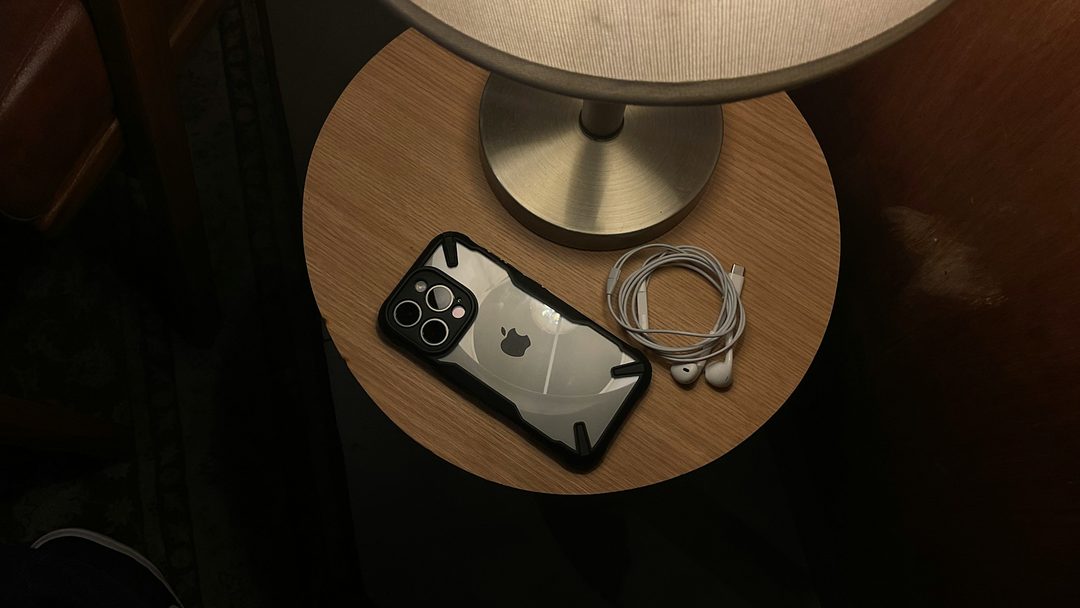
Linking from the Lock Screen
The quickest way, and the one to use if you are making the Lock Screen at the same time.
- Wake your iPhone and touch and hold the Lock Screen until the gallery of Lock Screens appears. You may be asked to unlock first.
- Swipe to the Lock Screen you want to link. To make a new one, swipe to the end and tap +.
- Tap Focus at the bottom of that Lock Screen.
- Choose the Focus to link it to, such as Work or Sleep, then close the list.
- Tap the Lock Screen to finish.
From now on, turning that Focus on, whether by hand from Control Center or on a schedule, brings that Lock Screen with it. Turning the Focus off puts your usual one back.
Linking from Settings
Handy when you are already setting up the Focus itself.
- Open Settings → Focus and tap the Focus you want.
- Under Customize Screens, tap the Lock Screen preview.
- Pick one of your Lock Screens, or create a new one from the gallery.
- Tap Done.
The same screen lets you choose Home Screen pages for the Focus, so Work can hide the apps you keep for evenings.
Setups worth copying
The row of widgets under the clock fits up to four small round ones, two wide ones, or one wide and two small. A quote widget is a wide one, because a sentence needs the room. Here is how that space tends to get used.
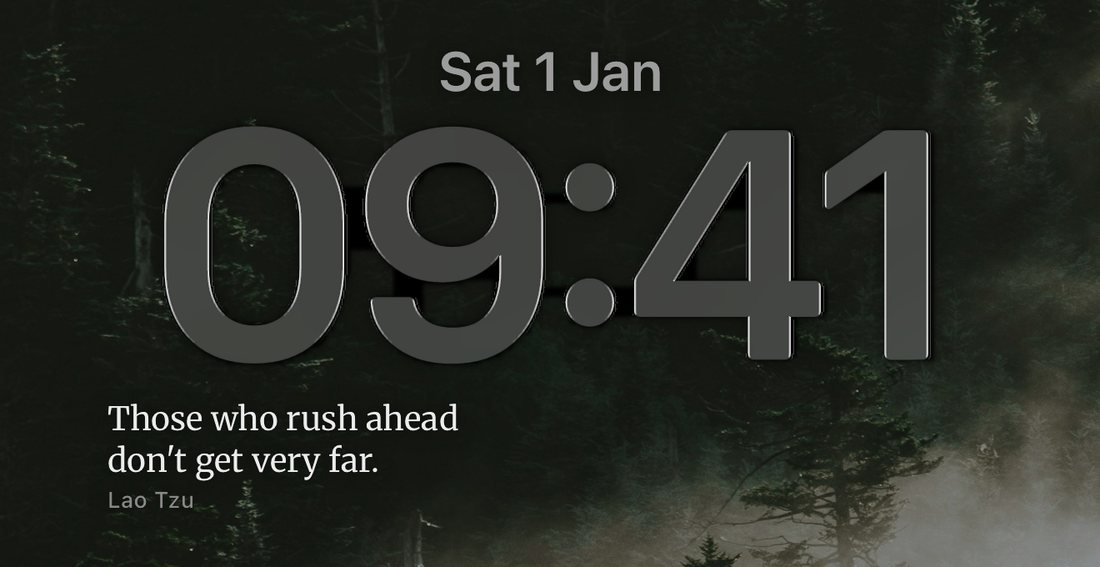
Everyday: a quote, the weather and your battery
A photograph you like, the Dailies widget under the clock, and two small ones beside it: Weather and Batteries. A new line every time you pick up your iPhone, plus the two things you would have unlocked it to check.
Work: what is next, and a reason to do it
A plain, calm wallpaper. Calendar's Up Next takes one wide slot and a quote takes the other. Linked to the Work Focus, this is the screen that tells you where you are meant to be and gives you one line of encouragement for getting there.
Sleep: nearly nothing
A dark wallpaper and at most one widget. If you keep the quote here, it is the first thing you read in the morning, before the news and before the messages. The Sleep Focus can also dim the Lock Screen, under Settings → Focus → Sleep, so what little is there stays out of the way at night.
Workout: rings and a push
Fitness takes a small slot for your activity rings, a quote takes the wide one, and Weather takes the last small one if you train outside. Link it to a Fitness Focus and it appears when you need it most.
Every Dailies widget follows the same quote, so the line on your Work screen and your everyday screen match at any given moment. The steps for adding the widget itself are in how to put quotes on your iPhone Lock Screen.
Notifications in a Focus
A Focus does two things: it changes your screens, and it decides which apps may reach you. Widgets are not affected by that second part, so a quote widget keeps showing under any Focus. Notifications are, so quotes that arrive as notifications go quiet unless the app is allowed.
To let an app through, open Settings → Focus, tap the Focus, tap Apps under Allow Notifications, then add it. Whether to let quotes through during Work is a matter of taste; most people leave them out of Sleep.
When the Lock Screen does not switch
- Check the link. In Settings → Focus, open the Focus and look under Customize Screens. If there is no Lock Screen there, the link did not save.
- Check the Focus is actually on. Open Control Center. The Focus button shows which one is running, if any.
- Check the schedule. A Focus set to start at a time or a place only switches when that time or place arrives.
- A widget on the new screen is stuck. That is a widget problem, not a Focus one: see why your iPhone widget is not updating.
Questions
Can each Focus have its own wallpaper and widgets?
Yes. Each Lock Screen keeps its own wallpaper, clock style and widgets, and linking one to a Focus means all of that changes when the Focus does.
What happens when the Focus turns off?
Your iPhone goes back to the Lock Screen you were using before the Focus started.
Will a Focus stop my quote widget?
No. A Focus filters notifications, not widgets. A quote widget on the Lock Screen keeps changing whichever Focus is on. Quotes that arrive as notifications need the app to be allowed in that Focus.
How many Lock Screens can I have?
Enough that it is rarely the limit. Swipe through them by touching and holding the Lock Screen, and delete one by swiping it up in the gallery.
Do I need an app to put a quote on a Focus Lock Screen?
For a quote that changes by itself, yes: a widget from a quotes app such as Dailies. For a single quote that stays put, no: save a picture of it and use it as that Lock Screen's wallpaper.
Keep reading
Start today with something good.
Set it up once. Dailies takes it from there.