How to add a widget to your Home Screen
Adding one takes about fifteen seconds once you know where the button hides. Knowing why an app is missing from the list, or why the widget is stuck showing the same thing, is the part that actually costs people an evening.
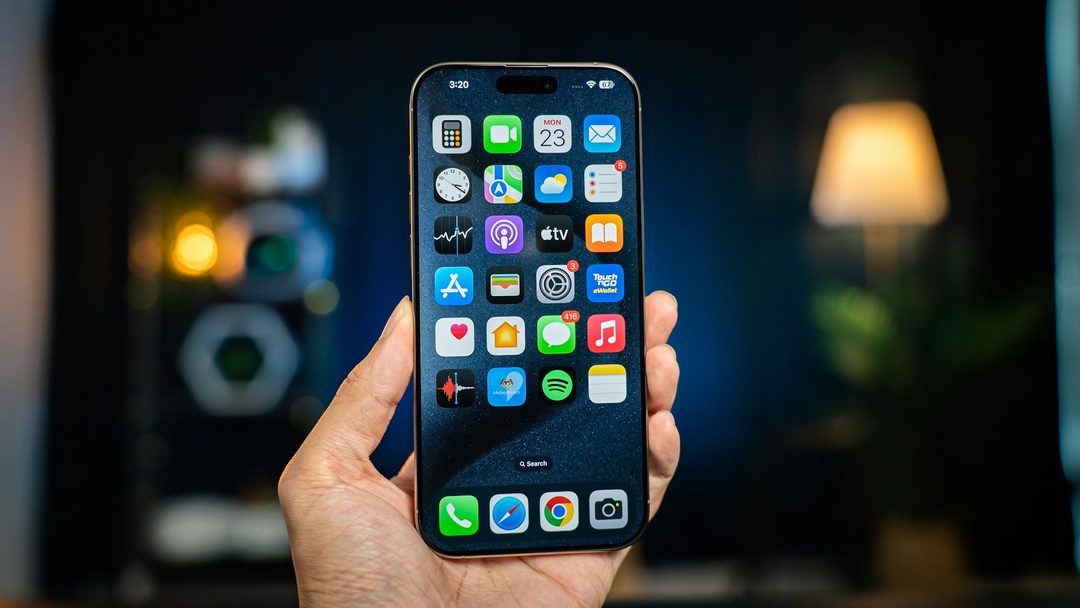
Adding a widget
The same five steps for every app on your iPhone. Dailies is the example; substitute whichever app you are after.
- Touch and hold an empty part of your Home Screen until the icons start to jiggle.
- Tap + in the top corner. On newer versions of iOS that button reads Edit instead. Tap it, then tap Add Widget.
- Search for Dailies and choose it.
- Swipe sideways to the size you want.
- Tap Add Widget, then Done.
A faster route, if the app is already on your Home Screen: touch and hold the app's own icon and pick Add Widget straight from the menu, skipping the search.
Dailies also walks you through this inside the app, with the screens drawn and animated, under Personalize → Home screen widget.
Picking the size
iOS offers apps a small, a medium and a large widget, and it is up to each app which of them it builds. Dailies offers medium and large, and deliberately no small one: a quote in the small box either gets cut off or shrinks to a size nobody reads, and a widget you do not read is decoration.
Size is worth a moment's thought rather than a shrug, because you cannot change it later. iOS has no resize handle on a placed widget; changing size means removing the one you have and adding the other. So:
- Medium: a wide, one-row box. Leaves room for four rows of icons under it. The right default.
- Large: a square taking a whole grid block. Longer quotes get room to breathe and the typeface actually shows.
Moving and removing
- Move it: touch and hold the widget until things jiggle, then drag it. Other icons shuffle around it.
- Remove it: touch and hold the widget and tap Remove Widget, then confirm. This removes the widget only; the app, and everything in it, stays.
- Change its settings: touch and hold and tap Edit Widget, if that app offers any.
Widgets also live in Today View, the panel you reach by swiping right from the first Home Screen page. Same widgets, same steps, off to the side rather than in with your apps. Worth knowing if you like a tidy Home Screen but still want the quote somewhere.
Widget stacks
A stack is several widgets in one spot that you swipe through, and it is the fix for wanting four widgets and having room for two.
- Add both widgets to the Home Screen at the same size. Stacks will not mix sizes.
- Touch and hold one and drag it directly on top of the other.
- Let go. They become a stack you can swipe through.
Touch and hold the stack and tap Edit Stack to reorder it, remove one, or turn off Smart Rotate. Smart Rotate is on by default and lets iOS decide which widget to show you. It is pleasant with a calendar and a weather widget, and irritating with a quote. If you want the quote there when you look, turn it off.
The Dailies widget
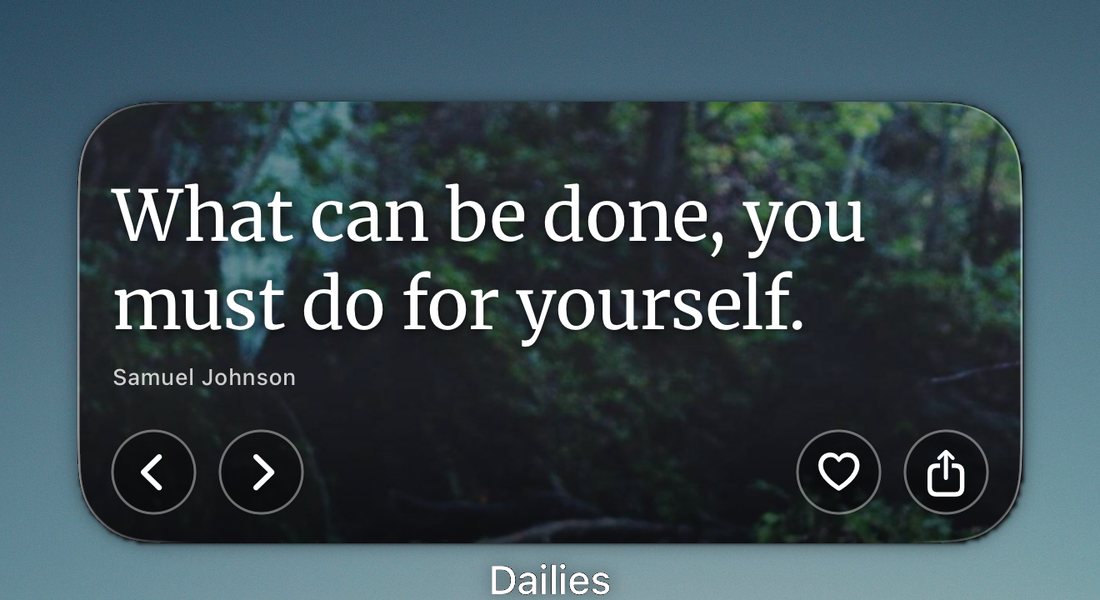
What you get once it is on the screen:
- A new quote about once an hour, drawn from the topics you follow, not a random line from everything the app has.
- Arrows on the widget itself, so you can step to the next quote or back to the last one without opening the app. Nothing else on the Home Screen does that, and it is the single most-used thing about it.
- Your background and your typeface, the ones you picked in the app. The Home Screen widget is the one that carries them; the Lock Screen widget is drawn in a single tone because iOS allows nothing else there.
- A tap opens the app on that quote, so you can save it or send it on.
The Lock Screen widget follows the same quote, so the two agree rather than showing you two different lines at once.
When it goes wrong
The app is not in the widget list
In order of how often it is the answer:
- Open the app once. iOS does not offer an app's widgets until the app itself has been run at least once after installing.
- Search the list rather than scrolling it. The list is long and not alphabetical in the way you expect.
- Restart your iPhone. Unsatisfying, and it genuinely does rebuild the widget list.
- Check the app is not offloaded. An offloaded app leaves its icon in place with a small cloud on it, and its widgets go away with it.
The widget is stuck on the same quote
Nearly always iOS saving battery rather than a bug in the app. iOS decides when a widget may refresh, and it gets stingy when your iPhone is low or cold.
- Turn off Low Power Mode. It throttles widget refreshes hard, and this is the answer most of the time.
- Open the app once. That pushes a fresh quote to the widget straight away.
- Remove the widget and add it back.
The full list, with what each symptom usually means: why your iPhone widget is not updating.
The widget is blank or gray
Usually a widget that has not had a chance to draw yet, on an iPhone that has just restarted or just installed the app. Open the app once and go back to the Home Screen. If it is still blank after that, remove it and add it again.
None of it helping? help@mydailies.app reaches a person, and the help page carries the short version of all of this.
Questions
Why is there no small Dailies widget?
Because a quote does not fit in one. The small widget is a quarter of the medium's width, and a line of any length in it is either cut off or shrunk past reading. Medium is the smallest size where the quote is still the point.
Can I resize a widget after adding it?
No. iOS has no resize handle on a placed widget. Remove the one you have and add the size you want instead. It takes a few seconds and nothing in the app is lost.
How often does the widget update?
About once an hour. iOS ultimately decides when a widget may refresh and will slow it down to save battery, which is why Low Power Mode is the first thing to check when it looks stuck.
Does the widget drain the battery?
Not meaningfully. The quote library ships inside the app, so the widget draws from your iPhone rather than fetching anything over the network.
Does removing the widget delete my saved quotes?
No. Removing a widget removes the widget. Your liked quotes and anything you have written stay in the app.
Can I put the widget on an iPad?
Yes. iPadOS takes Home Screen widgets and Today View widgets the same way, in portrait or landscape.
Start today with something good.
Set it up once. Dailies takes it from there.