How to customize your iPhone Lock Screen
You see your Lock Screen more than any other screen on your phone, often dozens of times a day without unlocking anything. It is worth five minutes. Here is everything you can change on it, the steps for each, and how to keep more than one for different parts of your day.
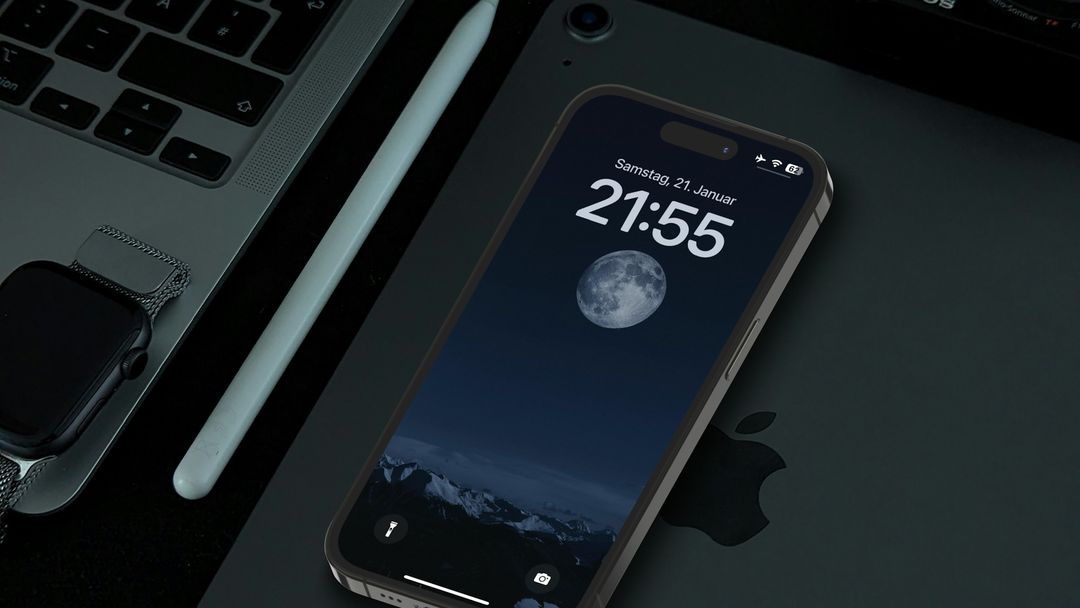
What you can change
A Lock Screen is a wallpaper with a few things laid over it, and nearly all of them are yours to change:
- The wallpaper. One photo, a set of photos that shuffle, or one of Apple's own designs.
- The clock. Its font, its color, how heavy it is and how tall.
- The widgets. One short line above the time, and a row of small widgets below it.
- The two buttons at the bottom, the flashlight and camera unless you change them.
- A Focus. Each Lock Screen can be tied to one, so it appears when the Focus does.
Every iPhone that can run a current version of iOS can do all of this. Some extras, such as photos that move as you tilt the phone, depend on the model.
The steps
Everything happens in one editor. To get there and make a Lock Screen your own:
- Unlock your iPhone, stay on the Lock Screen and touch and hold it. Face ID or your passcode has to have unlocked the phone first, or touching and holding does nothing.
- Choose to edit or start fresh. To change the Lock Screen you are looking at, tap Customize, then tap the Lock Screen preview. To make a new one, tap the + button instead.
- Pick a wallpaper. For a new Lock Screen, choose from the gallery: your own photos, Photo Shuffle, emoji, weather, astronomy, Apple's collections, plain colors and more.
- Style the clock. Tap the time to choose its font and color, and drag the slider to make it lighter or bolder. Drag the clock's bottom right corner to make it taller.
- Add widgets. Tap the space under the time, or Add Widgets, and pick from the list. Tap the date above the time to put a single short widget there instead.
- Adjust the photo. Pinch to zoom, drag with two fingers to move it, and swipe left or right to try different color filters.
- Swap the buttons if you like. Tap the minus on the flashlight or camera button to remove it, then tap the plus to choose another control.
- Save it. Tap Add or Done, then choose Set as Wallpaper Pair to use the same picture on your Home Screen, or Customize Home Screen to give the Home Screen its own.
Choosing a wallpaper
One photo
The simplest, and the one you will notice least after a week. Pick a photo with some quiet space at the top, where the time sits, and it will read better. If the photo has a clear subject, such as a person, a pet or a mountain, iOS can let it step in front of the numbers of the clock. Apple calls this the depth effect, and the layering button in the editor turns it on and off.
Photo Shuffle
A set of photos that changes on its own: when you tap the Lock Screen, when you wake the phone, every hour or every day. You can let iOS choose from people, pets, nature or cities in your library, or pick the photos yourself. Tap the photo thumbnail in the editor to change the selection, and the shuffle button to change how often it moves on.
Apple's designs
Emoji patterns, live weather, the Earth and Moon as they are right now, plain colors and gradients, and Apple's collections. A few, such as weather and astronomy, may need to be downloaded first: scroll down the gallery and tap Get below the one you want.
Whatever you choose, check it with a notification on top. A busy photo that looks lovely alone can make notifications and widgets hard to read.
The clock
Tap the time in the editor and a panel opens with the fonts, a weight slider and the colors. Some wallpapers offer a more see-through look for the time as well, which lets the photo show through the numbers. Drag the clock's bottom right corner to stretch it taller, and the time will try to fit itself around the subject of your photo.
The color you pick is shared: the date and the widgets on the Lock Screen take it too. A softer color is often easier to live with than pure white over a bright photo.
Widgets
There are two places for widgets on the Lock Screen:
- Above the time, sharing a line with the date. It holds one widget, and only a few words of it: the weather, your next event, a battery level.
- Below the time, a row with room for four small round widgets, or two wide rectangular ones, or one wide one and two small ones.
To change them, open the editor, tap the widget row, and tap the minus on a widget to remove it or pick a new one from the list. Lock Screen widgets are drawn in a single tone that follows your clock color, so they stay readable over any wallpaper. If an app is missing from the list, open the app once and try again; iOS only offers widgets from apps that have been opened. More in iPhone widget not updating.
More than one Lock Screen
You can keep several Lock Screens and swap between them: a calm one for the evening, a busy one with your calendar for the workday, a photo of your people for the weekend.
Switching
Touch and hold the Lock Screen until the Customize button appears, swipe to the one you want, then tap it.
Linking one to a Focus
In the same view, tap Focus near the bottom of a Lock Screen and choose one, such as Work or Sleep. From then on that Lock Screen appears whenever the Focus turns on, and switching to the Lock Screen turns the Focus on. Setups worth copying are in how to link a Lock Screen to a Focus.
Deleting one
Touch and hold the Lock Screen, swipe to the one you want gone, swipe up on it, tap the trash button, then tap Delete This Wallpaper. Its matching Home Screen goes with it.
A quote on your Lock Screen
A Lock Screen you look at dozens of times a day is a good place for a line worth reading. There are three ways to put one there, a widget, a notification or a wallpaper, and how to put quotes on your iPhone Lock Screen walks through each.
With Dailies, the widget is the wide rectangular one in the row under the time, so it takes half the row and leaves room for two small widgets beside it. It shows a short quote from the topics you follow and moves on to a new one about once an hour. Tap it to open the app on that quote. It follows your clock color like every other Lock Screen widget, so it fits whatever wallpaper you choose.
Questions
How do I change my iPhone Lock Screen?
Unlock your iPhone, stay on the Lock Screen and touch and hold it. Tap Customize to change the one you have, or the plus button to make a new one. From there you can change the wallpaper, the clock and the widgets, then tap Done.
Why does nothing happen when I touch and hold the Lock Screen?
The iPhone has to be unlocked first. Look at it so Face ID unlocks it, or enter your passcode, but stay on the Lock Screen instead of swiping up. Then touch and hold.
Can I change the font of the clock on my Lock Screen?
Yes. In the Lock Screen editor, tap the time to choose a font and color, and use the slider to make the numbers lighter or bolder. You can also drag the clock's corner to make it taller.
Can I have a different wallpaper on my Lock Screen and Home Screen?
Yes. When you save a Lock Screen, choose Customize Home Screen instead of Set as Wallpaper Pair, and pick a different photo, a color or a blurred version for the Home Screen.
How do I delete a Lock Screen?
Touch and hold the Lock Screen, swipe to the one you want to remove, swipe up on it, tap the trash button and tap Delete This Wallpaper.
How do I put a quote on my Lock Screen?
Add a quote widget to the row under the time, let a quote app send you notifications, or save a quote picture as your wallpaper. A widget is the one that keeps changing without you doing anything.
Keep reading
Start today with something good.
Set it up once. Dailies takes it from there.