How to add widgets on iPad, to the Home Screen and the Lock Screen
The iPad does widgets almost exactly the way the iPhone does. The differences are worth knowing before you start: an extra size, a Home Screen that rearranges itself when you turn it, and a Lock Screen that keeps one set of widgets for portrait and a separate one for landscape.
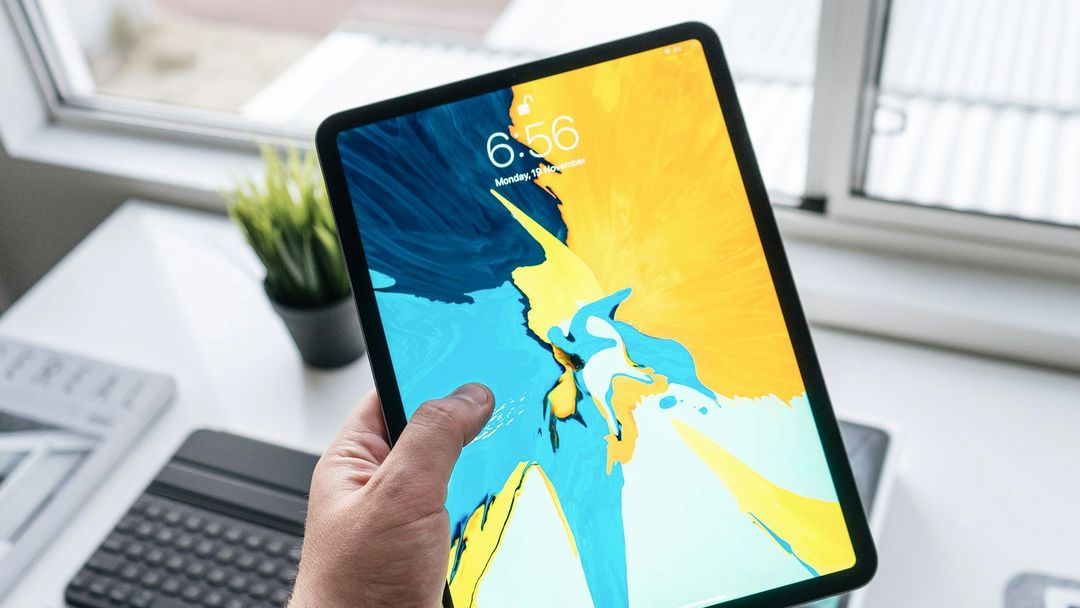
Adding a widget to the iPad Home Screen
The same steps for every app. Dailies is the example; use whichever app you are after.
- Go to the Home Screen page where you want the widget.
- Touch and hold an empty part of the background until the apps start to jiggle.
- Tap Edit at the top of the screen, then tap Add Widget.
- Search for Dailies, or scroll to it, and tap it.
- Swipe left and right through the sizes. When you see the one you want, tap Add Widget.
- While the apps are still jiggling, drag the widget where you want it, then tap Done.
There is a shortcut on recent versions of iPadOS, if the app's icon is already on your Home Screen: touch and hold the icon, and the menu that opens has the app's widget sizes along the top. Tap one and the icon turns into that widget. Touch and hold the widget later to turn it back into an icon.
The sizes on iPad
An iPhone offers apps a small, a medium and a large widget. The iPad adds a fourth, extra large, twice the width of the large one, which only makes sense on a screen this size. Each app decides which of them it builds, so not every app shows all four.
Dailies offers medium and large on iPad, the same as on iPhone. There is no small one, because a quote in that box is either cut off or shrunk past reading, and no extra large one, because a single line of text stretched across half an iPad looks lost rather than generous.
To change the size of a widget you have already placed, touch and hold it and pick another size from the menu that opens. Only the sizes the app offers are there.
Turning, stacking and Today View
Turning the iPad
The Home Screen grid is a different shape in portrait and landscape, so iPadOS reflows apps and widgets when you turn it. Put the widget where you want it in the way you hold the iPad most, then turn it once and check where it landed.
Stacks
A stack is several widgets of the same size in one spot that you swipe through. Add both widgets, then drag one directly on top of the other and let go. To change a stack, touch and hold it and tap Edit Stack: you can reorder it, remove a widget, and switch off Smart Rotate and Widget Suggestions.
Smart Rotate lets iPadOS pick which widget the stack shows. It is pleasant with a calendar and the weather, and irritating with a quote you meant to read. If you want the quote there whenever you look, turn it off.
Today View
Swipe right from the left edge of the Home Screen and you reach Today View, a column of widgets off to the side. Widgets there are added the same way: touch and hold an empty spot until things jiggle, tap Edit, then Add Widget. It is a good home for a quote if you would rather keep the Home Screen itself for apps.
To see Today View while the iPad is locked, open Settings → Face ID & Passcode (or Touch ID & Passcode) and check Today View and Search is on under Allow Access When Locked.
Adding a widget to the iPad Lock Screen
Lock Screen widgets came to the iPad later than to the iPhone, with iPadOS 17. Every iPad that can run Dailies can show one, so if the app installed, this will work.
- Wake your iPad with the top button and touch and hold the Lock Screen. If nothing happens, touch and hold again and enter your passcode.
- Swipe to the Lock Screen you want to change and tap Customize. If iPadOS asks, choose the Lock Screen rather than the Home Screen.
- Tap the widgets that are already there, or tap Add Widgets.
- Pick Dailies from the list and tap the widget to add it.
- Tap outside the widget panel to close it, then tap Done.
Lock Screen widgets are drawn by iPadOS in a single tone, on the iPad as on the iPhone: no background, no color, no typeface of the app's own. That is the operating system's rule, and every app lives under it.
Portrait and landscape are set separately
This is the part that catches most people out. An iPad Lock Screen holds two sets of widgets: in portrait they sit in a row under the clock, and in landscape they sit in a column down the left side. iPadOS keeps the two apart, so a widget you add while holding the iPad upright is not there when you turn it on its side.
Add the widget in the orientation you use most, then turn the iPad, touch and hold the Lock Screen again, tap Customize, and add it in the other orientation too. If your iPad lives in a keyboard case, landscape is the one that counts.
The slot above the clock is separate again. It holds one line of text, about the date or the weather, in both orientations. Dailies does not offer a widget there, because a quote cut off after four words is not a quote.
Removing a widget
- From the Home Screen: touch and hold the widget, tap Remove Widget, then Remove. For a stack, the menu says Remove Stack instead.
- From the Lock Screen: touch and hold the Lock Screen, tap Customize, tap the widgets, and tap the − on the one you want gone. Remember to check the other orientation too.
Removing a widget never removes the app or anything in it.
Dailies on iPad
Dailies runs on iPad in portrait and landscape, and its widgets behave the way they do on the iPhone:
- The Home Screen widget, medium or large, carries the background and typeface you chose in the app, with arrows to step to the next quote or back to the last one without opening anything.
- The Lock Screen widget puts a short quote in the single tone iPadOS allows there. Tap it to open the app on that quote.
- Both change about once an hour, and they follow the same quote, so the two agree rather than showing you two different lines.
- Quotes can arrive as notifications on the iPad too, in the hours you set under Personalize → Daily dose.
The app walks you through both widgets with the screens drawn, under Personalize → Home screen widget and Personalize → Lock screen widget.
If you use Dailies on an iPhone as well, each device has its own widgets. Adding one on the iPad changes nothing on the iPhone, and the other way round.
When it goes wrong
The app is not in the widget list
- Open the app once on this iPad. iPadOS does not offer an app's widgets until the app has run on that device at least once, even if you use it every day on your iPhone.
- Search the list rather than scrolling it.
- Restart the iPad. It rebuilds the widget list.
- Check the app is not offloaded. An offloaded app keeps its icon, with a small cloud beside the name, and its widgets go away with it until you tap to download it again.
The Lock Screen widget vanished when I turned the iPad
It did not vanish. It is in the other orientation's set. Add it again while holding the iPad the new way; see portrait and landscape.
The widget is stuck on the same quote
Usually the iPad saving battery. Turn off Low Power Mode, then open the app once, which pushes a fresh quote to both widgets. The full list of fixes is in why your widget is not updating; everything there applies to the iPad as well.
None of it helping? help@mydailies.app reaches a person, and the help page has the short version.
Questions
Can you put widgets on the iPad Lock Screen?
Yes, since iPadOS 17. Touch and hold the Lock Screen, tap Customize, then tap Add Widgets. iPadOS keeps a separate set for portrait and for landscape, so add the widget in both if you turn your iPad.
Why do my Lock Screen widgets disappear when I rotate my iPad?
Because the iPad Lock Screen has one set of widgets for portrait, in a row under the clock, and another for landscape, in a column down the left side. Customize the Lock Screen again in the other orientation and add them there.
What is the extra large widget?
A size only the iPad offers, twice the width of the large widget. Each app decides whether to build one. Dailies offers medium and large on iPad.
Why is an app missing from the widget list on my iPad?
Most often because the app has not been opened on that iPad yet. iPadOS only offers an app's widgets after the app has run on the device at least once. Open it, then try again, and restart the iPad if it is still missing.
Do widgets on my iPad and iPhone sync?
No. Each device keeps its own Home Screen and Lock Screen, so a widget added on the iPad has to be added on the iPhone separately, and the other way round.
Keep reading
Start today with something good.
Set it up once. Dailies takes it from there.